Better Notes. Less Time.
The ICANotes Behavioral Health EMR is the most clinically robust and intuitive behavioral health software for psychiatrists, nurse practitioners, therapists, social workers, and other mental health professionals. Let us transform your documentation story and help you write great notes in a fraction of the time.
Better Notes. Less Time.
ICANotes is the most clinically robust and intuitive charting solution for behavioral health professionals. Let us transform your documentation story and help you write great notes in a fraction of the time.
Behavioral Health Software
Trusted by Clinicians Nationwide
Behavioral Health Software
Trusted by Clinicians Nationwide

Say goodbye to
tedious documentation
ICANotes behavioral health software is quick and menu-driven, featuring robust clinical content so that you do less typing and still write comprehensive narrative notes that are personalized and clinically relevant.




Everything You Need to Manage Your Practice
The ICANotes Behavioral Health EHR includes a fully integrated practice management system with the tools you need to streamline operations and deliver optimal patient care.






Fully configured
Behavioral Health EMR
With an intuitive, chart-centric workflow, ICANotes is the only fully configured EMR software for behavioral health, therapy, psychiatry, and addiction treatment.
Intuitive and
customizable notes
Our robust behavioral health content engine and customizable mental health note templates reduce the time you spend documenting patient care while enabling you to confidently bill at the maximum level of reimbursement.
Start a Free Trial
Don't need to bill insurance?
Sign up using the button below.
Mental Health Billing Software
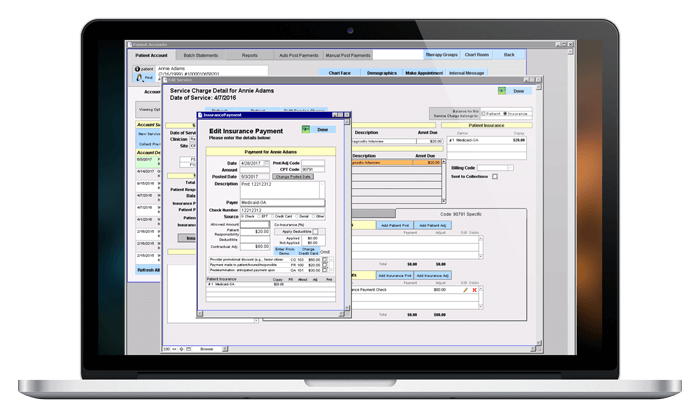
Gain more control over your receivables and get paid faster with integrated billing.
Verify patient benefits and submit claims electronically, auto-post insurance payments, and create statements, superbills, and CMS forms. Generate detailed or summary reports on providers, deposits, payments, collections, and patient and insurance aging.
Stellar Support 24x7
Every customer receives unlimited one-on-one web-based training sessions and has 24x7 priority access to our certified support experts via live chat, phone, or email at no additional charge.
We even keep up with evolving industry standards so that you don't have to.
Questions? 866-847-3590
Upcoming Webinar
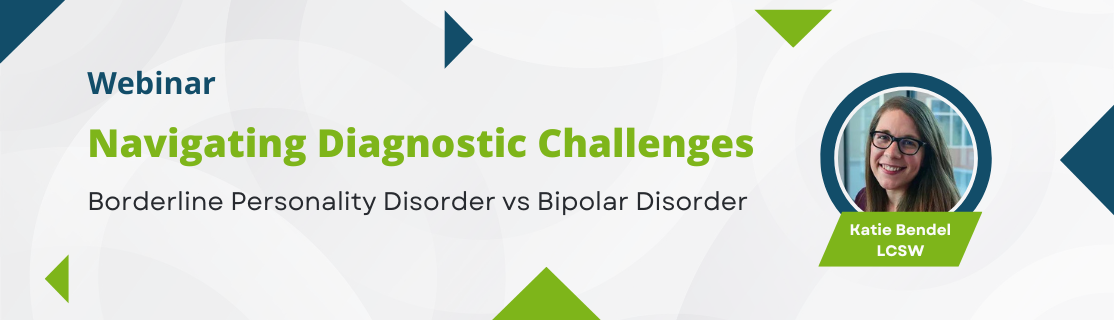
Navigating Diagnostic Challenges: Borderline Personality Disorder vs Bipolar Disorder
Thursday, May 16th, 2024 · 1:00 PM EST
Join us for an insightful webinar as we navigate the complexities of distinguishing between Borderline Personality Disorder (BPD) and Bipolar Disorder (BD). With their overlapping symptoms and potential for misdiagnosis, understanding the nuances is crucial for accurate assessment and effective treatment.
Agenda:
- Identify key similarities between BPD and BD, and the possibility for misdiagnosis.
- Build awareness regarding the importance of an accurate diagnosis particularly for BPD vs BD.
- Learn important diagnostic themes that can aid in differentiating between BPD and BD.
- Build basic knowledge of treatment approaches for BPD vs BD.
Whether you're a seasoned clinician or a student entering the field, this webinar promises valuable insights, practical strategies, and a deeper understanding of two complex mental health conditions.
With research-backed knowledge and resources, this presentation will help you enhance your diagnostic skills and refine your approach to client care.
The ICANotes Difference
ICANotes is a behavioral health EMR that specializes in faster note-taking for therapists, psychiatrists, nurse practitioners, psychologists, social workers, and other professionals. Our mental health software has been designed to meet the unique needs of practices since 1999. Our complete suite of behavioral health practice management software and services alleviates your administrative burden so that you can focus on providing excellent care to your clients.
You can try it out for yourself with a free trial or professional demo. Pricing is based on the size of your practice and the features you need. Contact us to find out how ICANotes behavioral health software can benefit your practice, or use our ROI Calculator.

Intuitive, Accessible, Time-Saving
ICANotes - the only behavioral health EMR software that actually thinks like a clinician.